Android User Guide
Installation
Search for "koedesk" on Google Play and install it.
Initial Setup
Log In
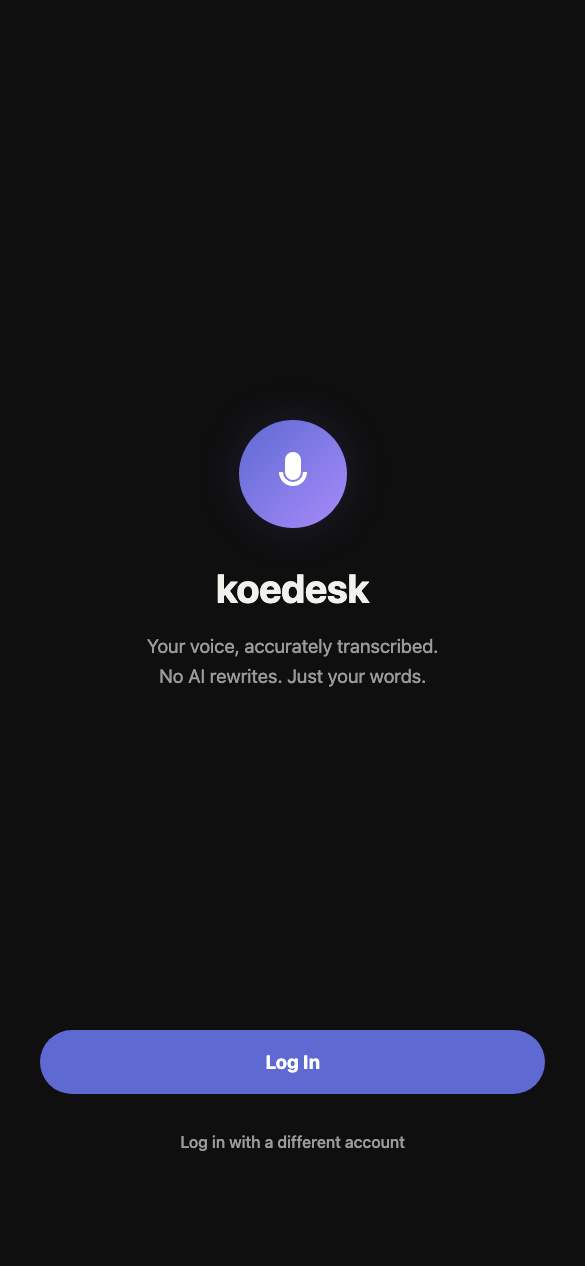
On Android, you sign in first (before the setup steps). Tap "Log In" to open a browser-style sign-in page. You can sign in with Apple, GitHub, Google, Microsoft, or an email address (one-time code); choose "Log in with a different account" to use a different account.
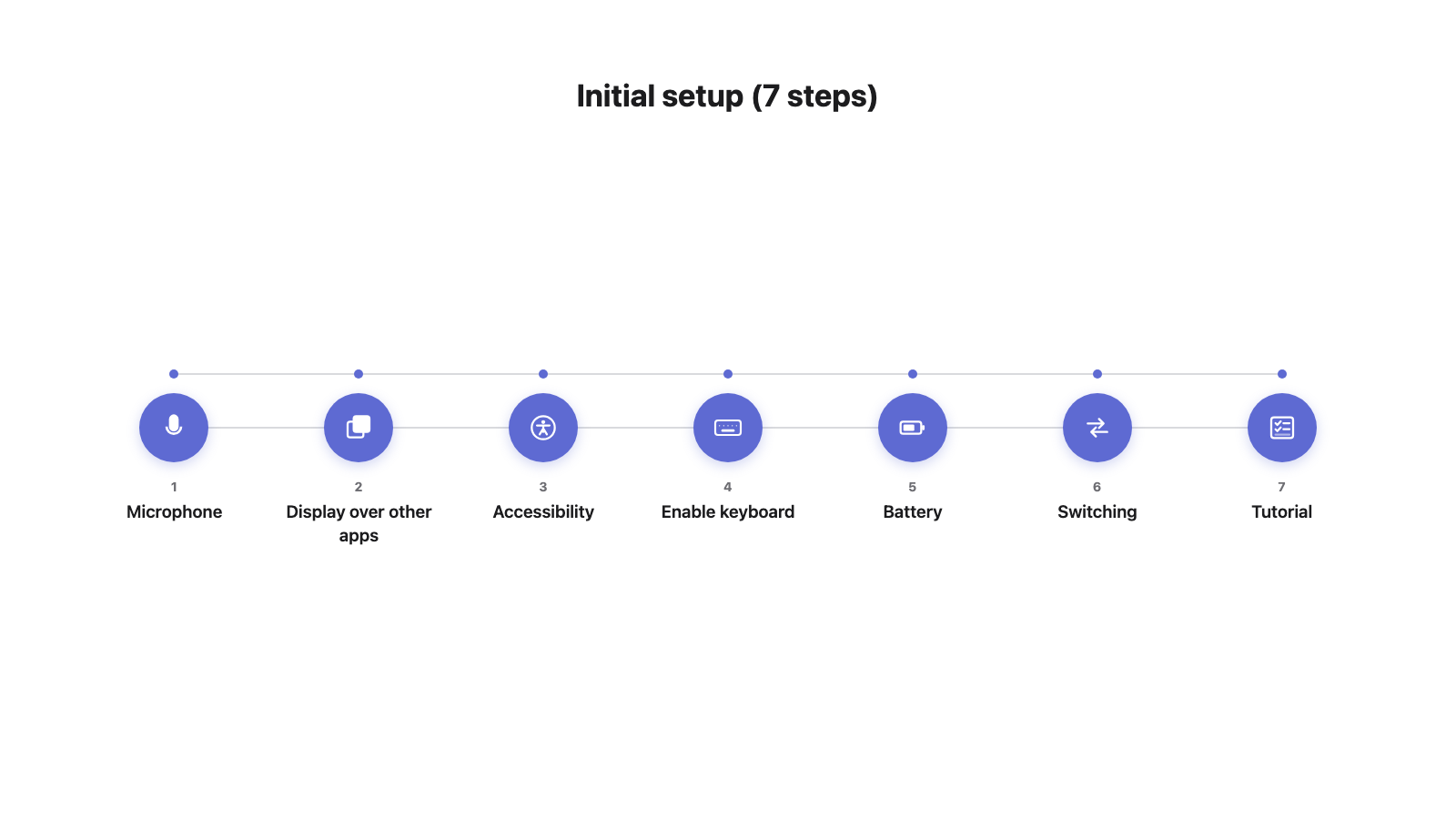
Step 1/7: Microphone Access
When the permission dialog appears, choose "While using the app."
Step 2/7: Display Over Other Apps
This permission enables the round floating bubble shown while recording. Tap "Open Settings" and allow "Display over other apps."
Step 3/7: Accessibility
A full-screen disclosure screen (required by Google Play policy) appears. Review it, tap "Agree & Open Settings" and turn on koedesk's Accessibility Service in Android Settings.
Step 4/7: Enable the Keyboard
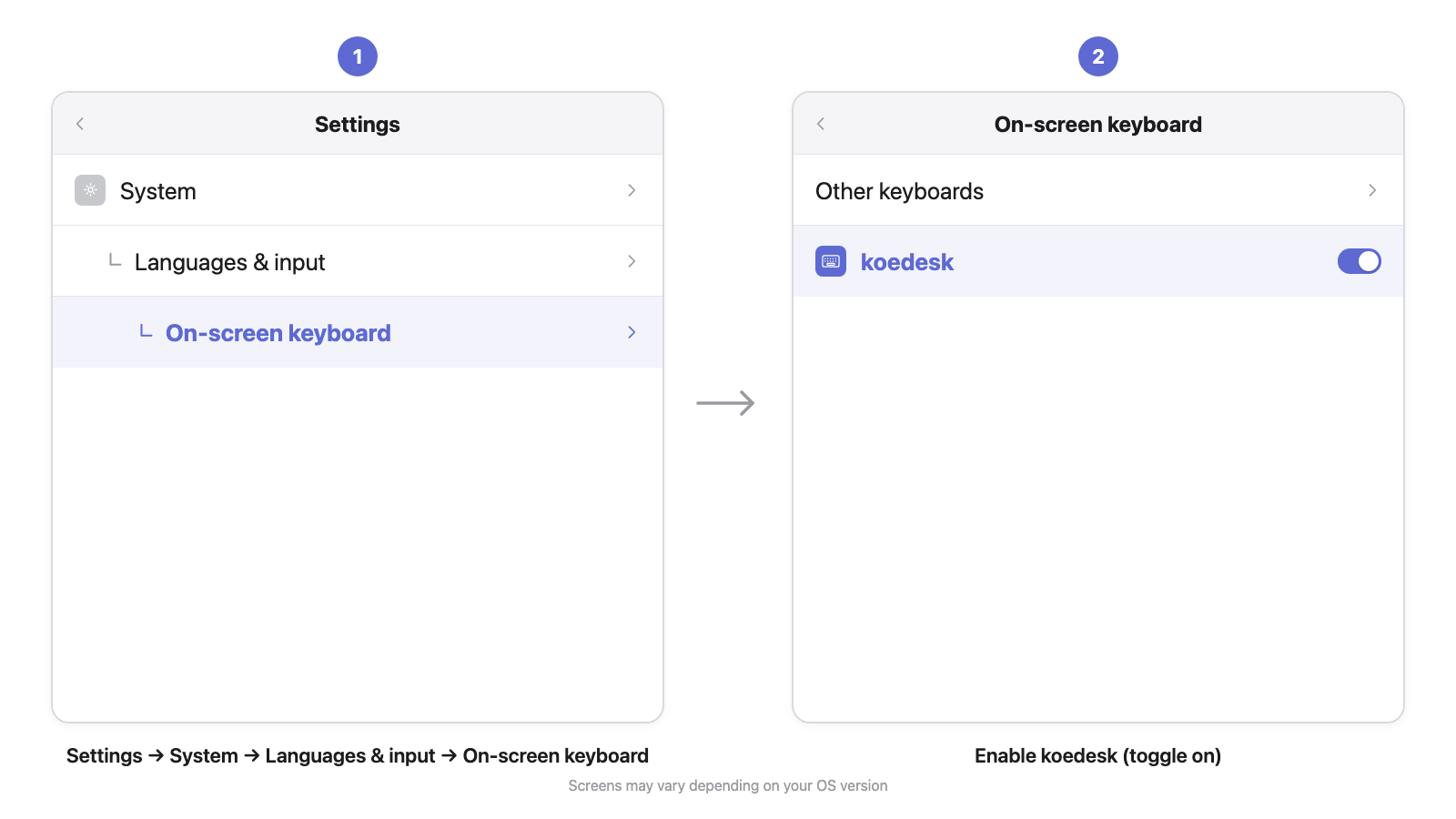
Tapping the button opens Android's settings screen (this step doesn't open the keyboard picker itself). Go to Settings → Languages & input → On-screen keyboard and turn koedesk on.
Step 5/7: Battery Optimization
This step helps koedesk keep running in the background. On Xiaomi/Redmi devices, an extra 2-item checklist appears: (1) no battery restrictions, and (2) MIUI Autostart. Autostart status can't be auto-detected, so you set it yourself and check it off.
Step 6/7: Switching Keyboards
This step explains that tapping the 🌐 key (or holding the spacebar) opens the keyboard switcher. On Samsung devices where Gboard isn't the default keyboard, an extra "Install Gboard from Play Store" prompt is shown.
Step 7/7: Tutorial
After reviewing how to tap the bubble to start recording and tap again to stop, tap "Start Using koedesk" to finish.
Enable the Keyboard
- Open Settings → System → Languages & input → On-screen keyboard
- Turn on "koedesk Keyboard" in the list
Basic Operation
- Tap the 🌐 key (or hold it to open the keyboard list) and switch to koedesk
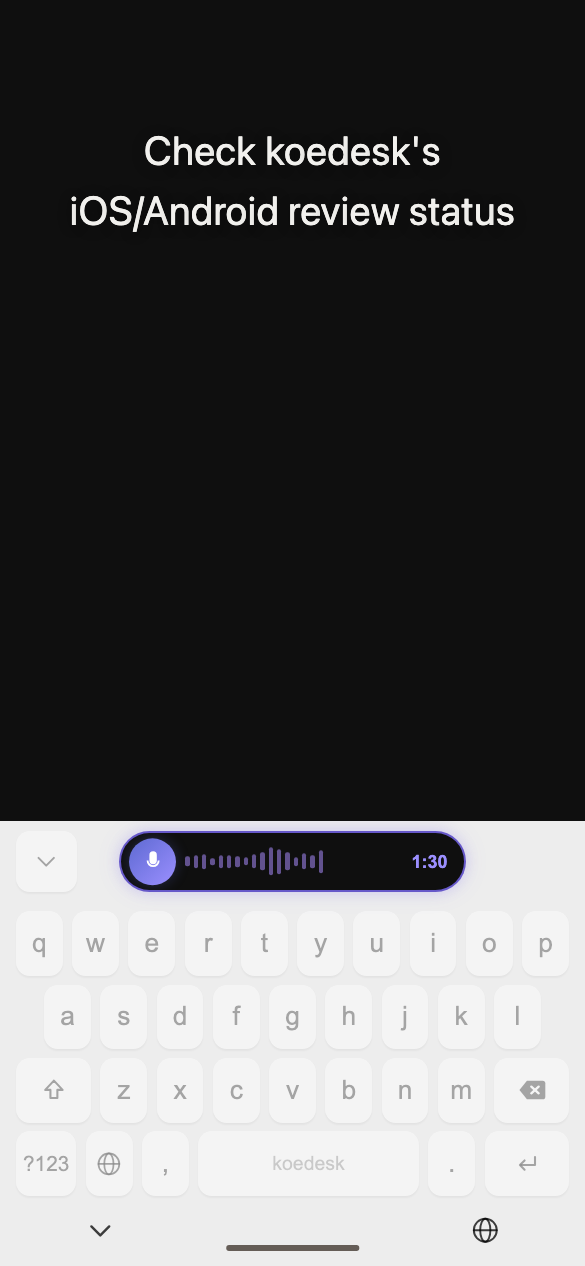
- Tap the bubble, or the microphone in the keyboard, to start recording
- Tap again when you're done speaking to stop
- The recognized text is automatically inserted at the cursor
There's no cancel button for a recording — right now, stopping a recording always proceeds to transcription.
Holding the spacebar does not switch keyboards — always use the 🌐 key to switch.
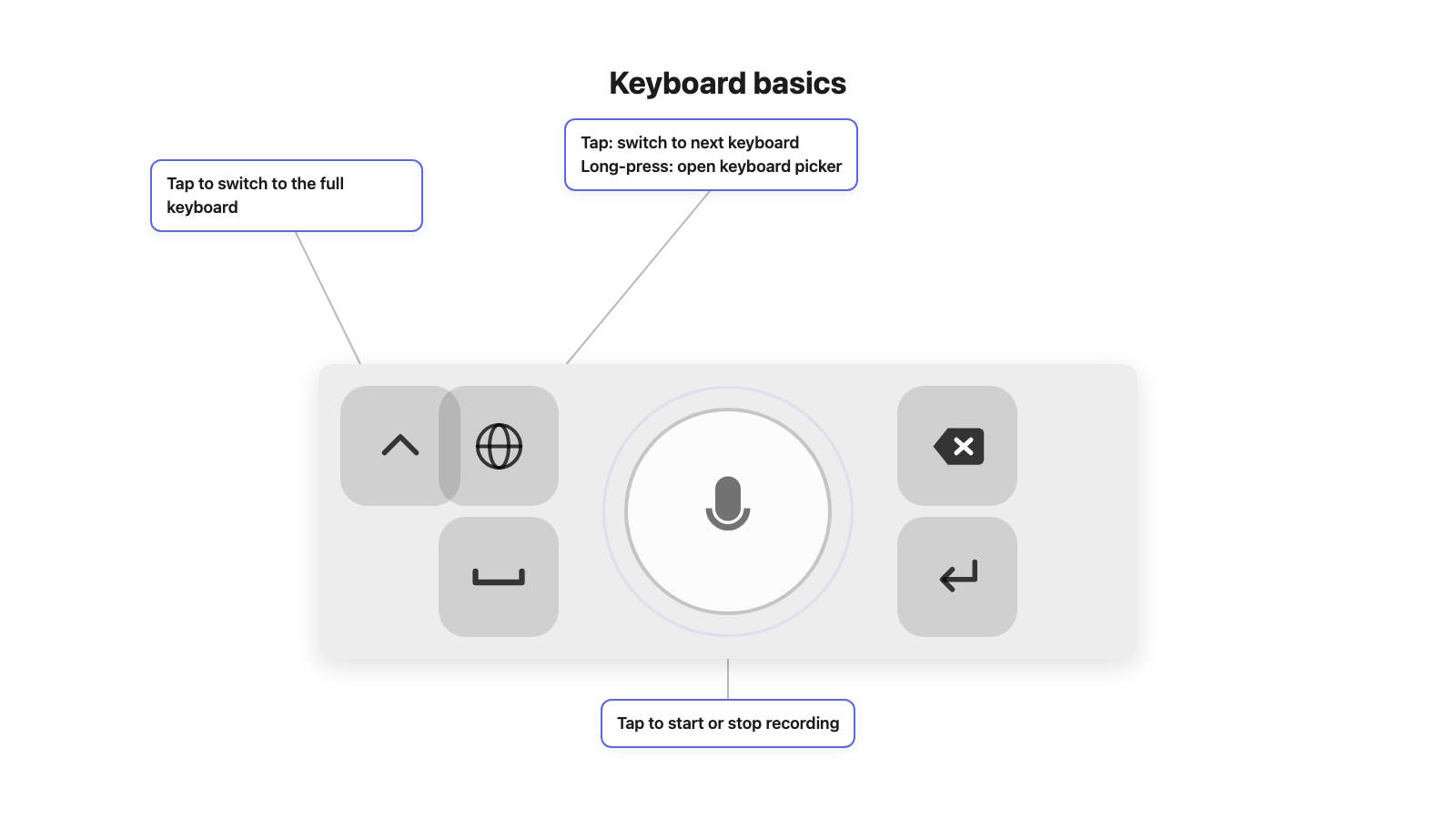
If you're signed out, tapping the microphone shows "Tap to sign in" and takes you to the sign-in screen.
Language Settings
In the Settings tab, go to "LANGUAGE" → "Transcription Language" to choose from 36 languages. There's no automatic detection. Unlike iOS, the default is always English, even on a Japanese-language device. This setting is saved per device, and carries over even if you sign in with a different account on the same device.
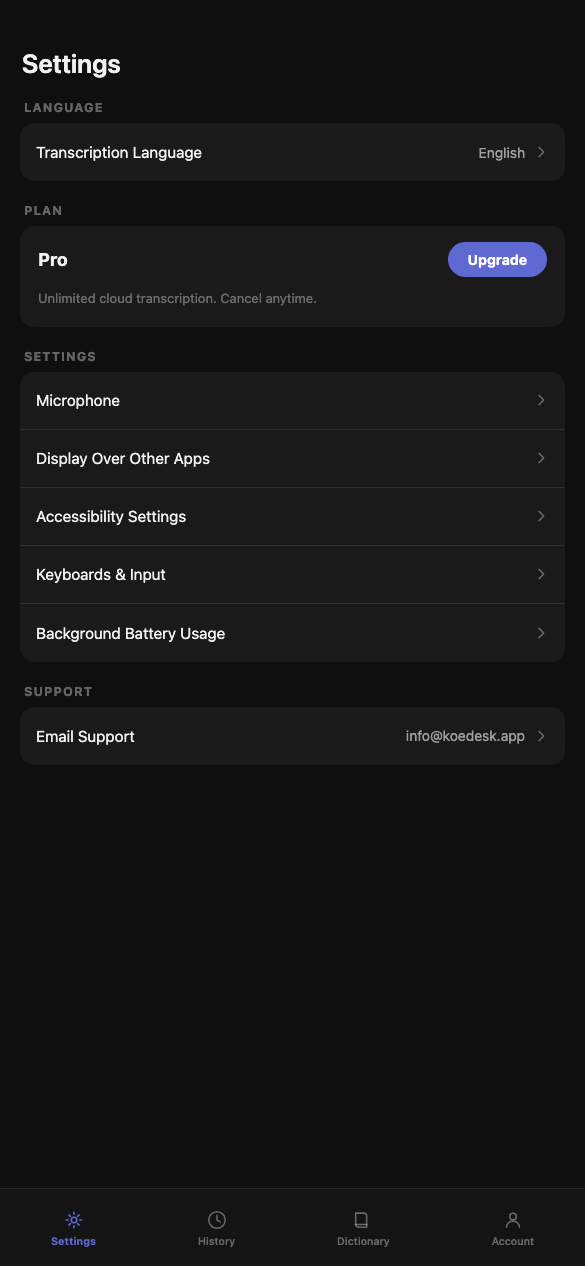
Plan & Free Tier
The free plan gives you 5 minutes per day (resets at UTC). You'll only be notified when you hit the limit via a toast on the floating bubble: "Daily limit reached — tap to upgrade to Pro". If you're only using the keyboard (not the bubble), there's no such notification — it may look like nothing happens when you tap.
Upgrading
On Android, upgrading is done only through Google Play Billing. Upgrade from "PLAN"; if you schedule a cancellation, the screen shows "Cancellation scheduled for (date)".
If your purchase doesn't show up, try "Restore Purchases" on the Account screen.
Troubleshooting
Recording doesn't seem to do anything
If no speech is detected, the recording is silently discarded with no error shown.
Can't switch back to another keyboard on a Samsung device
On some Samsung devices, holding the spacebar on the built-in keyboard is locked to voice input, which can make it hard to switch away from koedesk. If this happens, install Gboard (this is also suggested during setup step 6).
A red warning appears on Xiaomi/Redmi devices
When granting Accessibility permission, MIUI may show a red warning with a 7-second countdown — this is expected behavior.
Voice input doesn't work in password or phone number fields
In password and phone number fields, the pill shows 🔒 and "Voice input is disabled for this field" — voice input is blocked there (plain numeric fields are not affected).
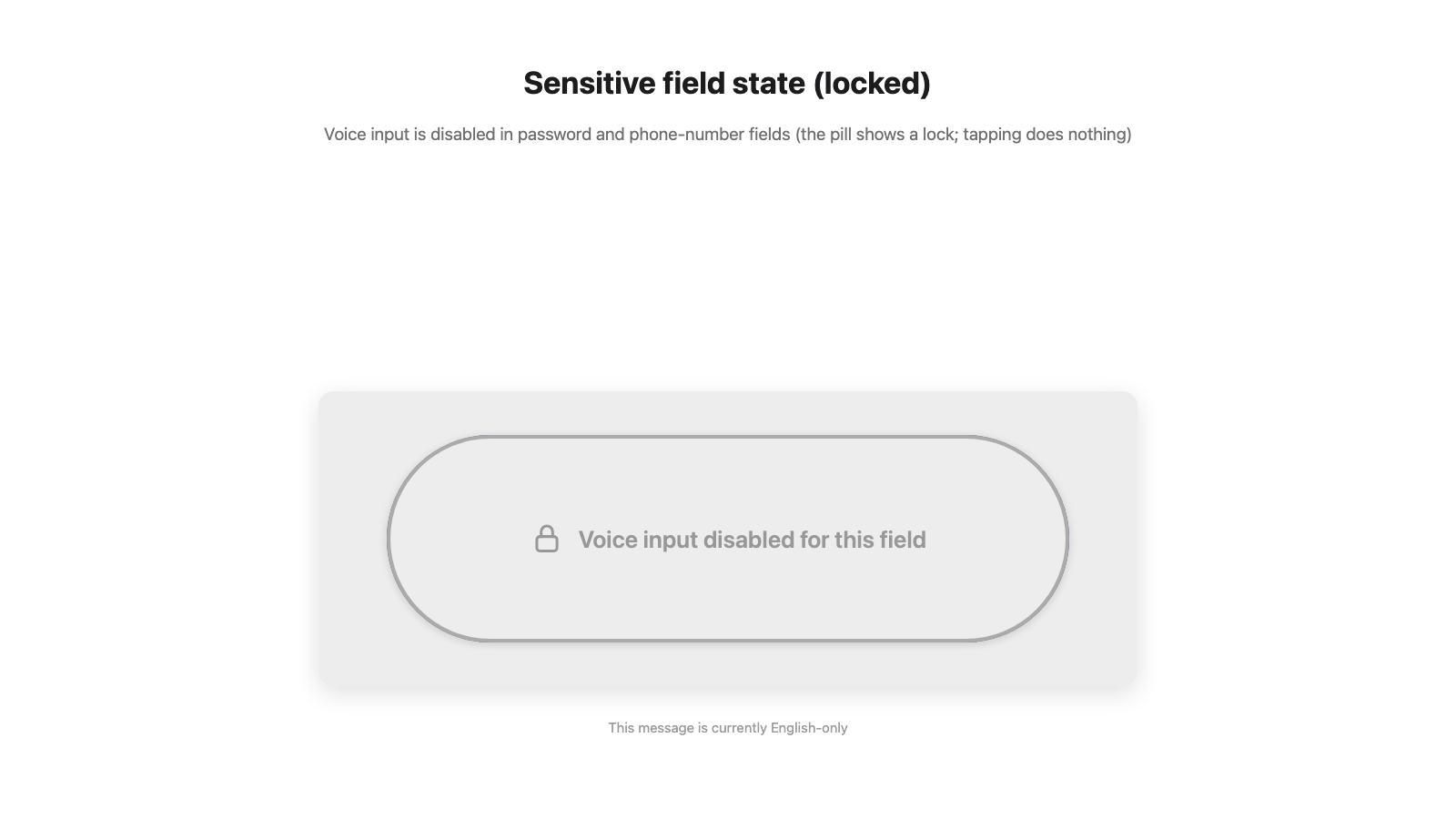
What happens without an internet connection
Transcription requires a network connection. If you're offline, stopping a recording will result in an error.
Is there a recording length limit
A single recording is capped at 1 hour.