Windows User Guide
Installation
Download the Windows installer from the koedesk.app download page and run it. Windows Defender SmartScreen may show a warning even though the installer is signed. If it does, click "More info" → "Run anyway" to proceed.
Initial Setup
Log In
On first launch, the login screen appears automatically. A browser window opens where you can sign in with Apple, GitHub, Google, Microsoft, or an email address (one-time code).
Setup Wizard (4 steps)
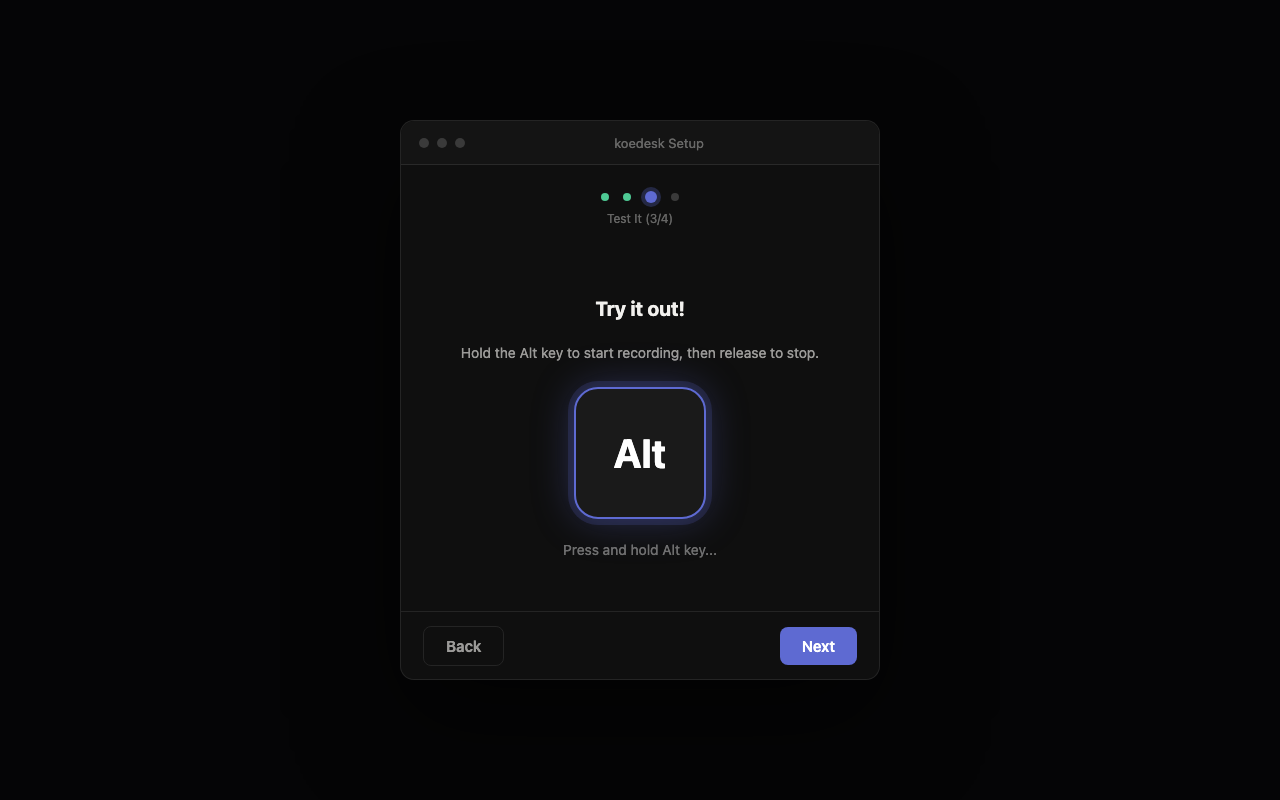
After logging in, the setup wizard launches. On Windows it has 4 steps: ① microphone permission ② microphone device selection ③ a test dictation ④ language and launch-at-login settings. If you restart the app partway through, you can pick up where you left off.
Test Dictation
During the wizard, you can hold the right Alt key and speak to confirm dictation works correctly. Microphone device selection and a level meter test are also part of the same step.
Basic Operation
The default activation key is the right Alt key. The left Alt key does not work.
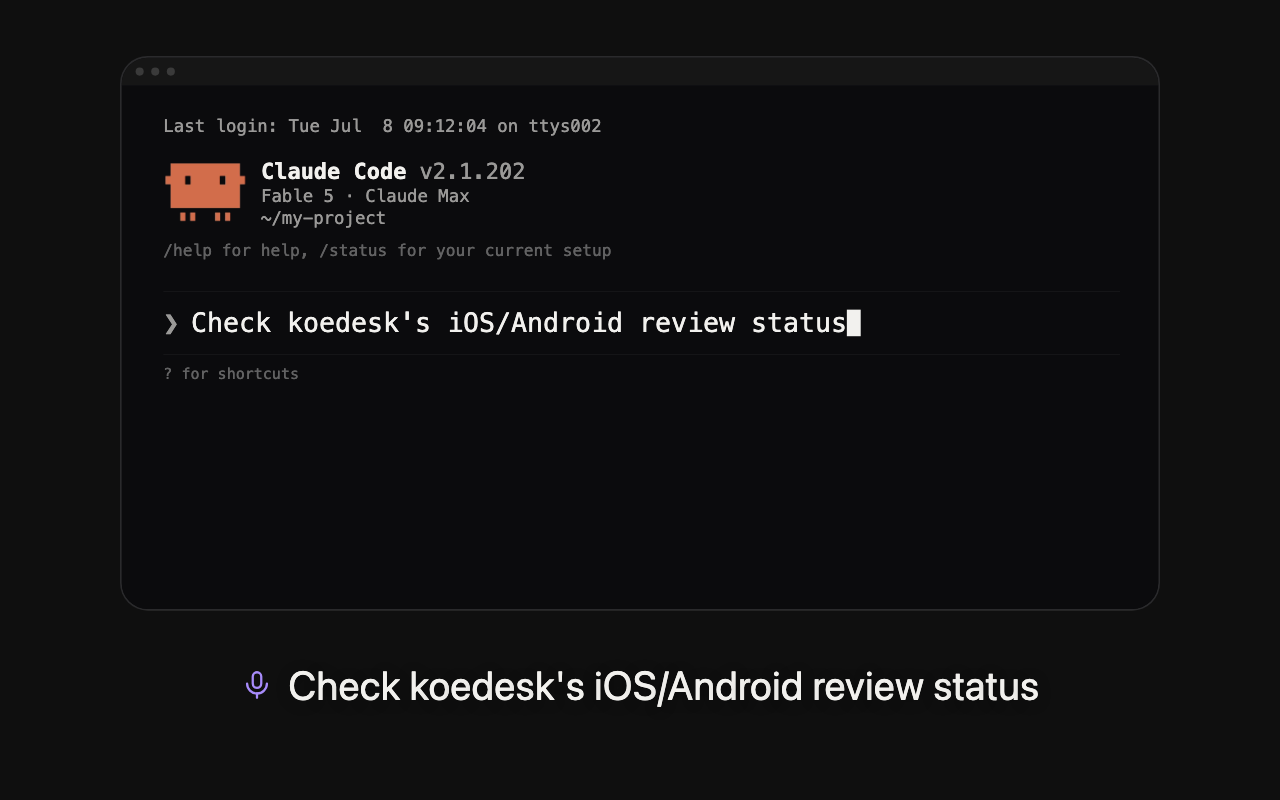
- While holding the right Alt key, say what you want to write
- Release the key to start transcription automatically
- The recognized text is copied to the clipboard, then pasted automatically. It stays on the clipboard afterward, so you can paste it again if needed.
Press Esc while recording to discard it.
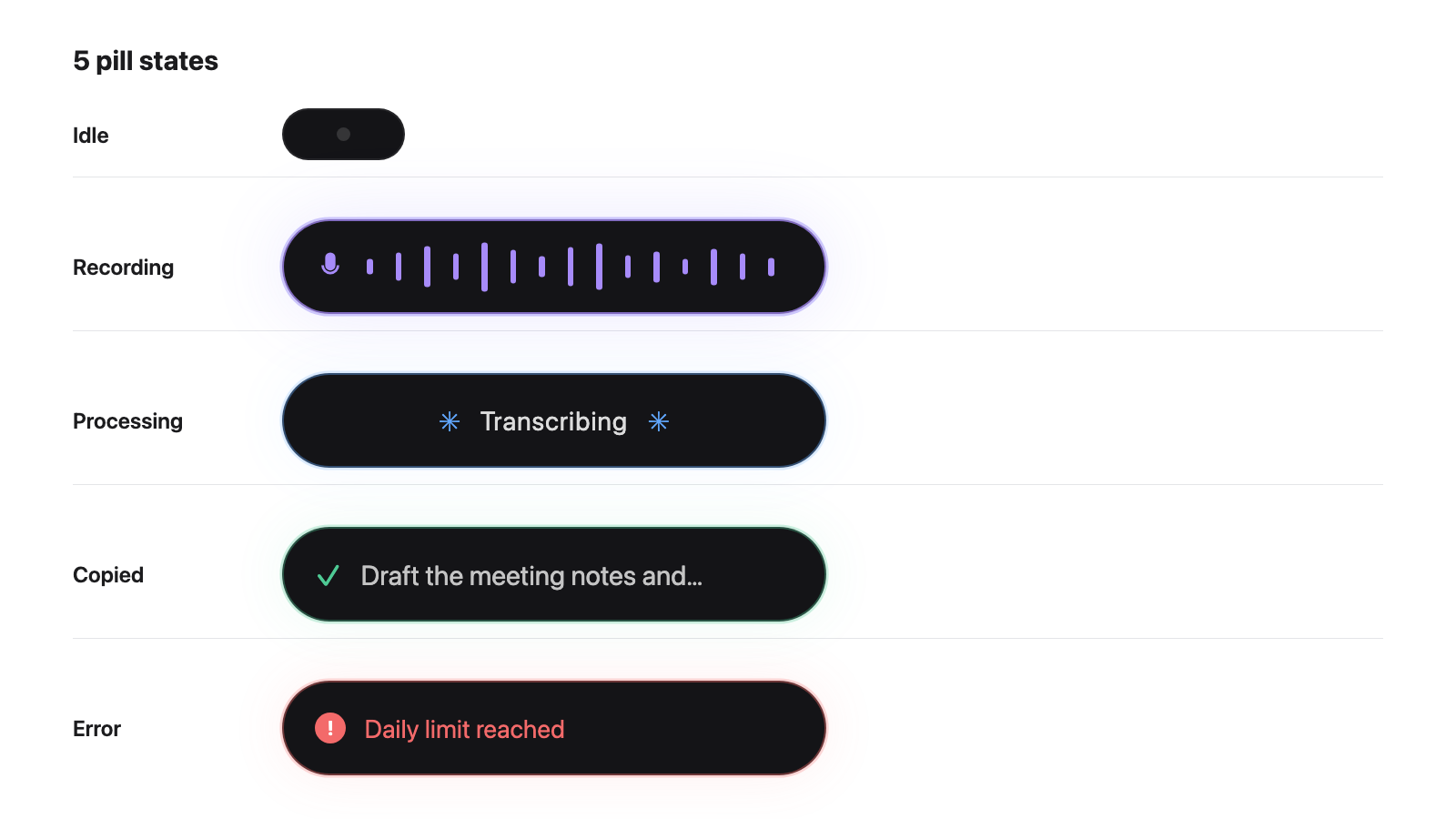
The pill (a small on-screen indicator) shows idle (dot), recording (waveform), processing (shimmer text), copied, or error states. You can drag it anywhere on screen and reset its position.
Changing the Activation Shortcut
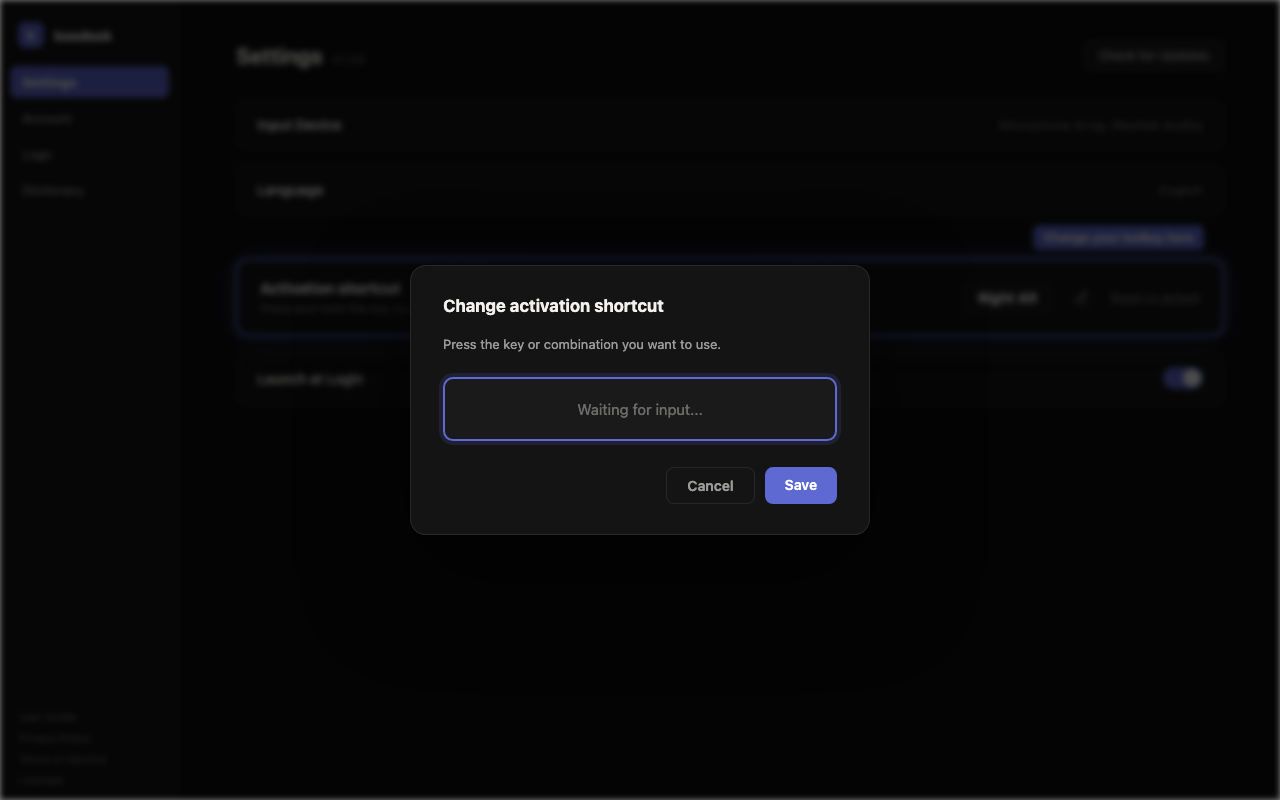
In Settings, under "Activation shortcut" you can change the key from the default right Alt. Click the pencil icon, press the key combination you want, and click "Save". Use "Reset to default" to go back to right Alt.
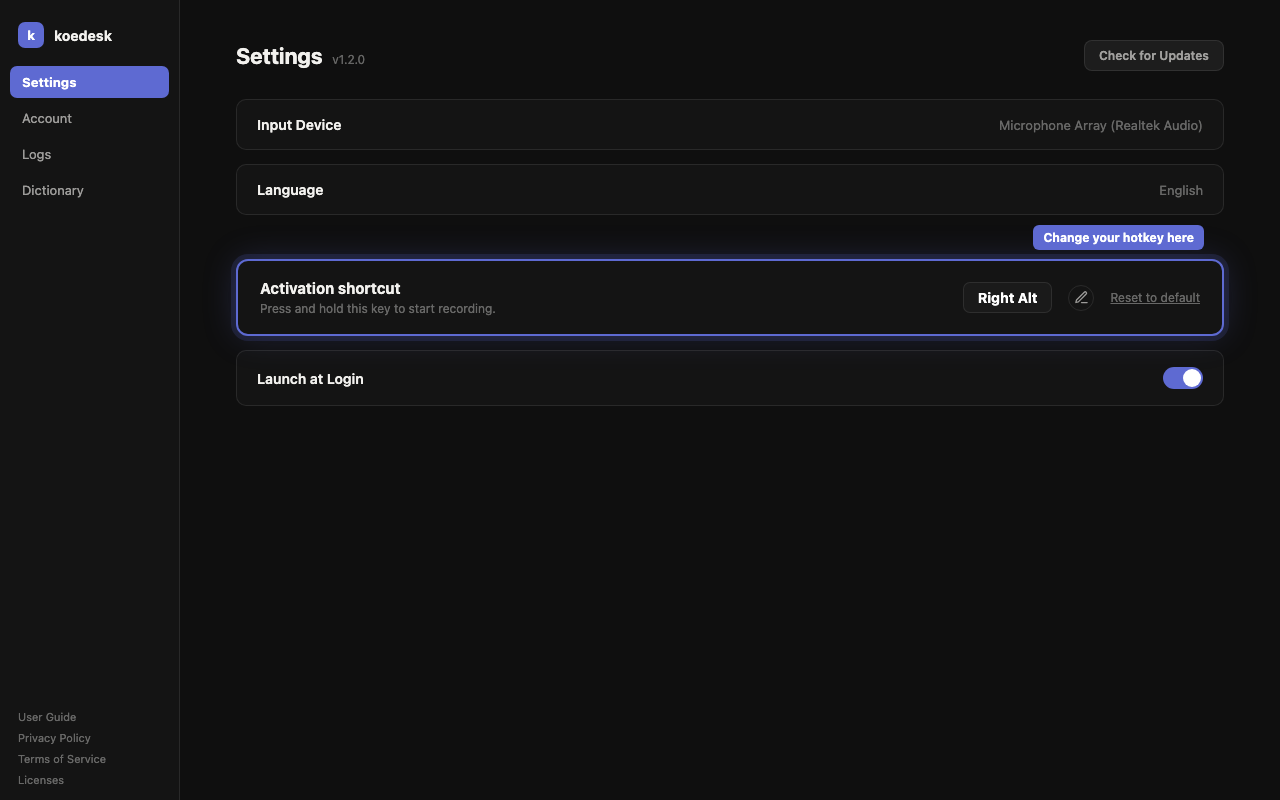
You can only set a modifier key (Ctrl, Alt, Shift, etc.) or a function key (F1–F20). Other keys can't be saved.
Muting Audio While Recording
When you start recording, other apps' audio is automatically muted by default. You can turn this off with a toggle in Settings.
System Tray Icon
The system tray icon lets you open the dashboard ("Dashboard...") or quit the app ("Quit koedesk"). Clicking the pill also opens the dashboard.
Automatic Updates
koedesk checks for updates automatically on launch and then every 4 hours. You can also check manually via "Check for Updates" in Settings.
Dashboard Layout
The left sidebar switches between Settings, Account, Logs, and Dictionary. Logs shows the model name, STT latency, and total time for each past transcription.
Language Settings
Choose your transcription language from 36 options in the dashboard's language setting. There's no automatic detection. This setting also controls the app's display language — changing it switches the menu language too.
Plan & Free Tier
The free plan gives you 5 minutes per day (resets at UTC). The Account screen shows a FREE/PRO badge and your usage for the current month.
You upgrade through web checkout (Stripe) on koedesk.app. Once subscribed, you can manage your plan anytime via "Manage Subscription" on the Account screen.
Troubleshooting
Recording doesn't seem to do anything
If no speech is detected, the recording is silently discarded with no error shown.
The pill turned red / shows an error
When there's an error, the pill turns red. Click it to see log details, or to re-sign in if your session expired. A session-expired notice doesn't dismiss on its own.
The right Alt key (activation shortcut) stops responding
If key monitoring fails to start for some reason, Ctrl+Shift+Space works as a fallback shortcut. (Alt+Space is intentionally avoided since it conflicts with the Windows system menu.)
Is there a recording length limit
A single recording is capped at 1 hour.
What happens when offline
When there's no connection, an offline banner is shown on screen.